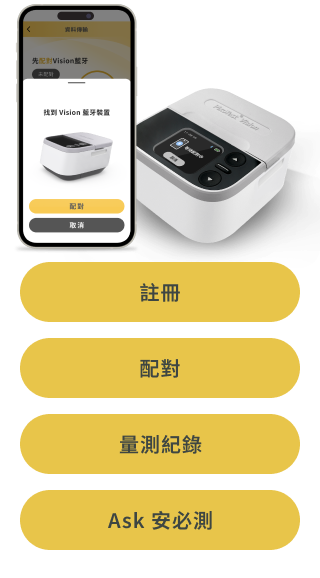
Step-by-step guidance gets you registered in minutes.
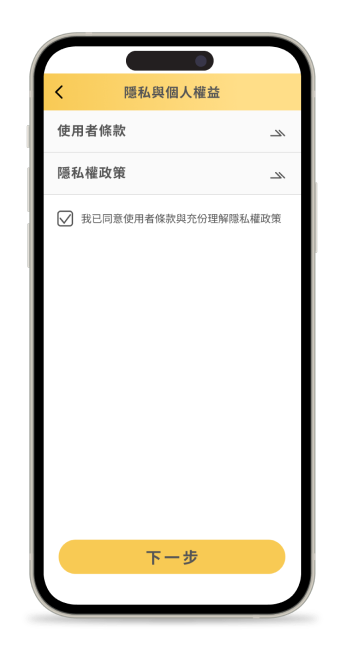
Read and accept the terms
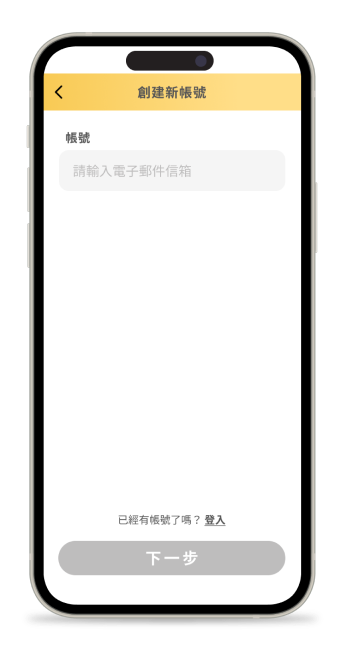
Enter your email address
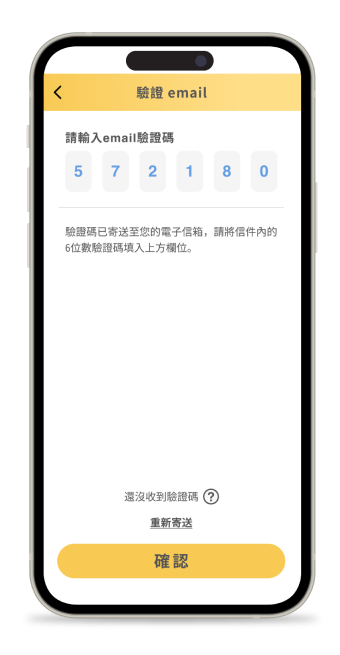
Enter the verification code from your inbox
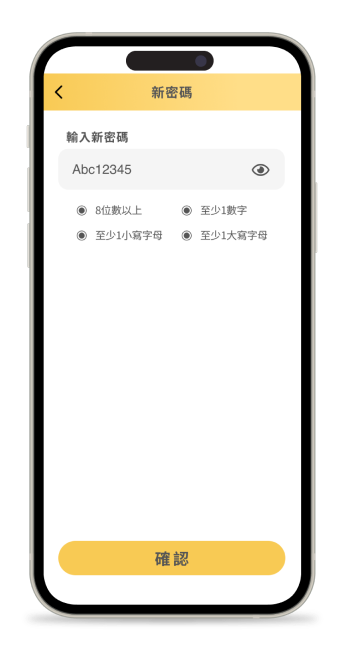
Set a new password to finish
One-tap Bluetooth links the analyzer with the app.
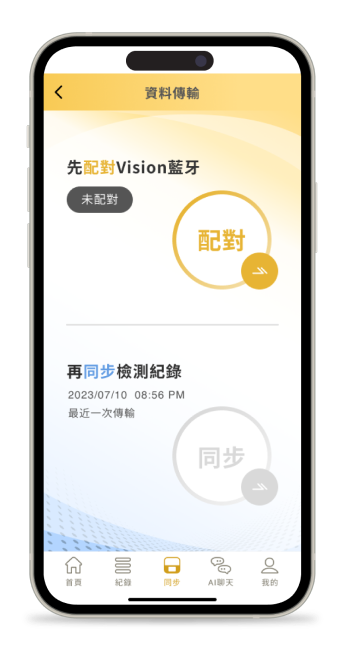
Open “Pair & Transfer” or tap the bottom sync button
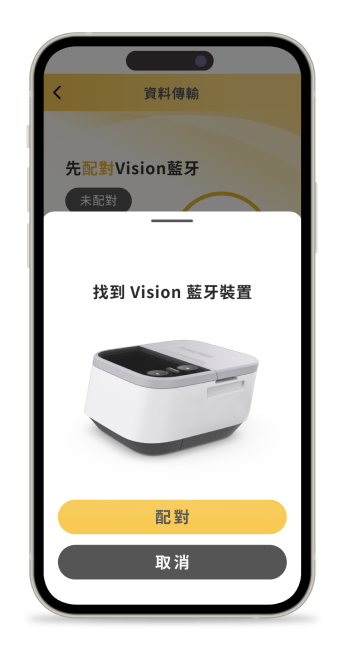
Wait for the analyzer to be found, then pair
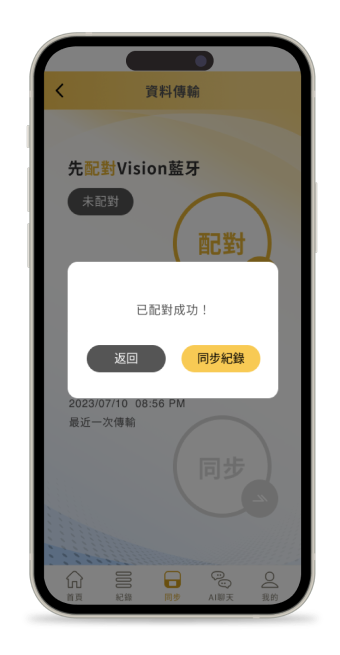
Sync your records once paired
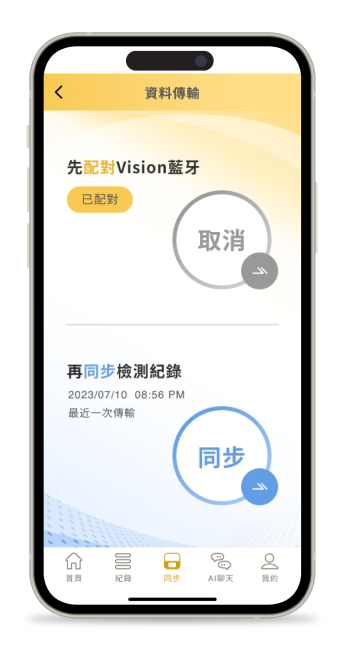
Stays synced until you tap “Unpair” (grey button)
Get readings instantly; switch between list and chart.
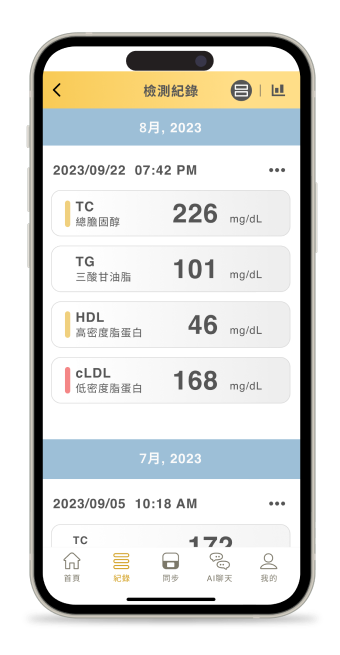
Tap “Records” in the bottom menu
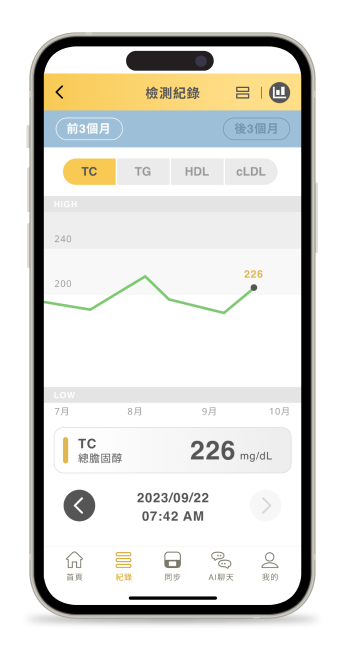
Switch to chart view from the top-right toggle
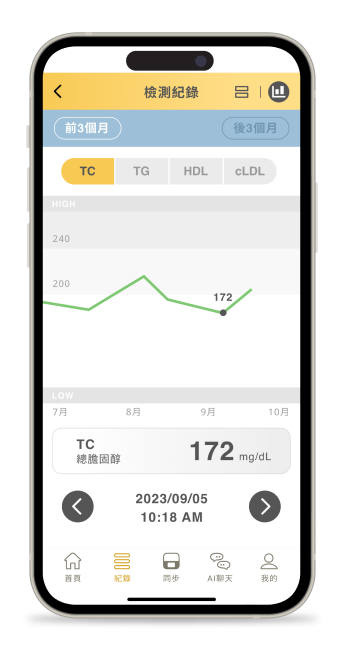
Use the arrows beside the date to change the period
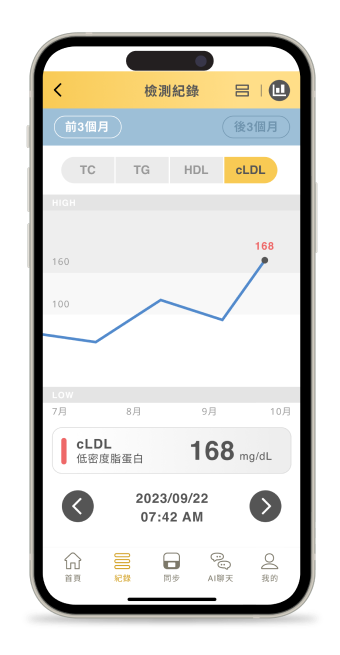
Switch among 4 metrics above the chart
Your AI coach is on call 24/7 whenever the data is unclear.
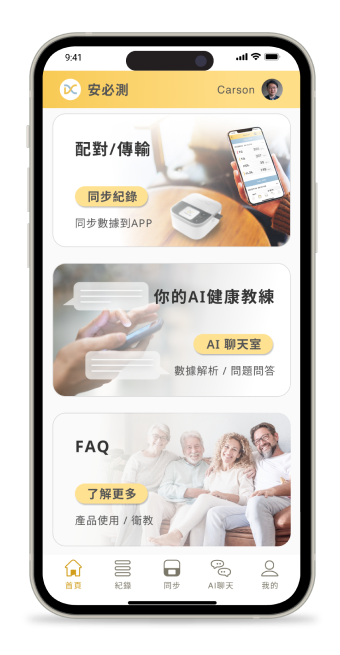
Open “AI Chat” from home or the bottom menu
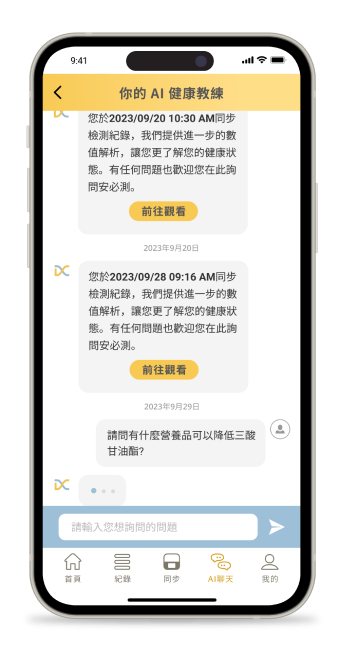
Ask questions or view analysis of your records
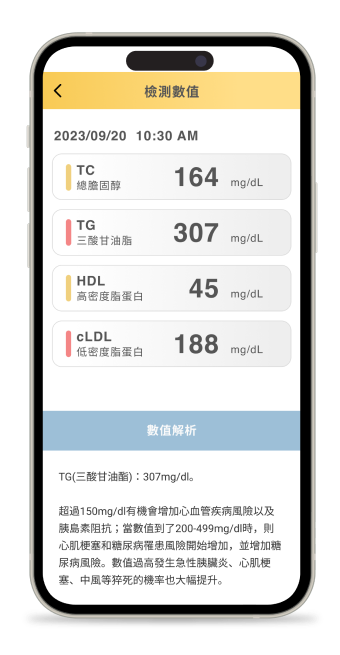
Record-analysis screen
Download the PixoTest app, finish registration and pairing, and start managing your health proactively.